Introduction
Google Analytics 4 (GA4) has become the standard analytics platform for understanding how users interact with your website. Unlike previous versions of Google Analytics, GA4 focuses on events, user engagement, and cross-platform measurement, helping businesses make better marketing decisions based on accurate data.
Whether you're an SEO professional, digital marketer, business owner, or website developer, understanding GA4 is essential for measuring traffic, tracking conversions, and optimizing your website's performance.
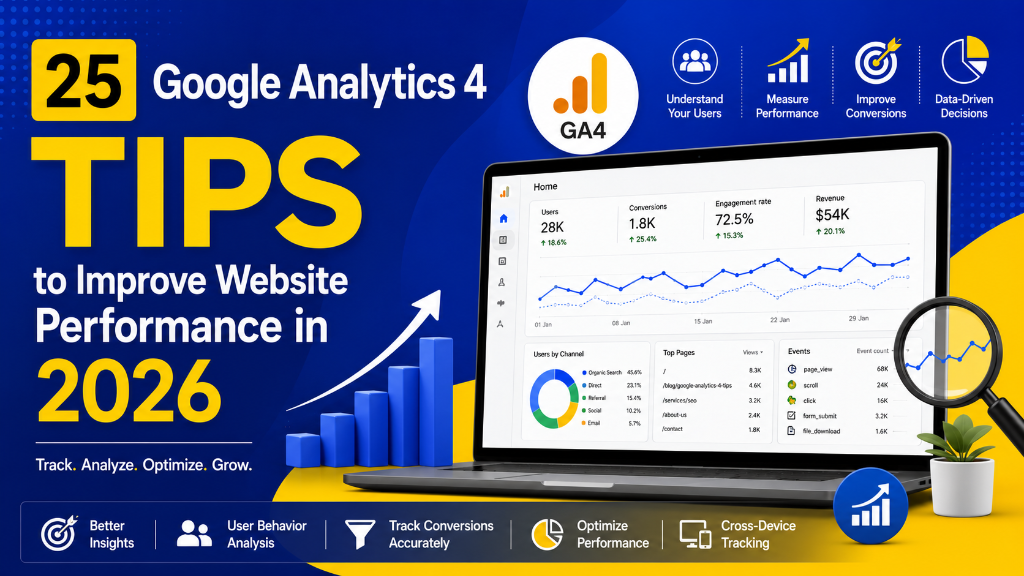
In this guide, you'll learn 25 Google Analytics 4 Tips to Improve Website Performance in 2026. These practical tips will help you collect better data, analyze user behavior, improve conversions, and maximize the value of your analytics.
What Is Google Analytics 4 (GA4)?
Google Analytics 4 (GA4) is Google's latest web analytics platform that helps businesses measure website and app performance using an event-based data model.
Unlike Universal Analytics, which relied heavily on sessions and pageviews, GA4 focuses on tracking individual user interactions called events.
With GA4, you can measure:
- Website traffic
- User engagement
- Events
- Conversions
- Revenue
- Traffic sources
- Audience behavior
- Landing page performance
- Device usage
- Customer journeys
GA4 provides deeper insights into how users interact with your website and helps businesses make data-driven decisions.
Why Google Analytics 4 Matters
Google Analytics 4 helps businesses understand what visitors do after arriving on their website.
Key benefits include:
- Better user behavior insights
- Event-based tracking
- Improved conversion measurement
- Cross-device tracking
- AI-powered insights
- Better audience segmentation
- Integration with Google Ads
- Privacy-focused measurement
- Custom reporting
- Predictive analytics
A properly configured GA4 property provides the data needed to improve marketing performance and website growth.
1. Set Up Google Analytics 4 Correctly
Before collecting data, ensure GA4 is properly configured.
Verify:
- Data Stream
- Measurement ID
- Enhanced Measurement
- Internal Traffic Filters
- Google Signals
- Data Retention Settings
A proper setup ensures accurate reporting from day one.
2. Connect GA4 with Google Tag Manager
Managing GA4 through Google Tag Manager makes event tracking easier.
Benefits include:
- Easier updates
- Better event management
- Centralized tracking
- No repeated code changes
- Simplified debugging
GTM is the recommended way to manage GA4 events.
3. Enable Enhanced Measurement
Enhanced Measurement automatically tracks several important interactions without additional configuration.
It includes:
- Page Views
- Scrolls
- Outbound Clicks
- Site Search
- Video Engagement
- File Downloads
Always verify that Enhanced Measurement is enabled.
4. Configure Key Events
Not every event should be treated equally.
Identify important business actions such as:
- Contact Form Submission
- Lead Generation
- Purchase
- Newsletter Signup
- Appointment Booking
These events help measure real business outcomes.
5. Mark Important Events as Conversions
Once important events are configured, mark them as Conversions inside GA4.
Examples include:
- form_submit
- purchase
- generate_lead
- sign_up
- begin_checkout
Conversions help evaluate marketing performance more effectively.
6. Review the Realtime Report
The Realtime report allows you to verify whether data is being collected correctly.
Use it to:
- Test events
- Verify traffic
- Confirm conversions
- Check DebugView
- Validate GTM implementations
This report is especially useful after implementing new tracking.
7. Analyze Traffic Acquisition
The Traffic Acquisition report shows where visitors come from.
Common channels include:
- Organic Search
- Direct
- Referral
- Paid Search
- Social
Understanding traffic sources helps improve marketing strategy.
8. Monitor Landing Page Performance
Landing pages often determine whether users convert.
Review metrics such as:
- Sessions
- Engagement Rate
- Average Engagement Time
- Conversions
- Revenue
Optimize pages with high traffic but low conversions.
9. Monitor User Engagement
GA4 focuses heavily on engagement.
Important engagement metrics include:
- Engaged Sessions
- Average Engagement Time
- Events per Session
- Engagement Rate
These metrics provide a better understanding of user behavior than simple pageviews.
10. Use Explorations for Advanced Analysis
GA4 Explorations provides powerful reporting capabilities.
Use it to create:
- Funnel Analysis
- Path Exploration
- User Journey Reports
- Segment Comparisons
- Free-form Reports
Explorations help answer complex business questions that standard reports cannot.
11. Create Custom Audiences
GA4 allows you to build audiences based on user behavior.
Create audiences such as:
- Returning Visitors
- Engaged Users
- Purchasers
- Cart Abandoners
- Newsletter Subscribers
- High-Value Customers
These audiences can be shared with Google Ads for remarketing campaigns.
12. Use DebugView for Testing
Before publishing new events, always verify them using DebugView.
Check whether:
- Events fire correctly
- Parameters are passed properly
- Conversions are triggered
- Custom events appear as expected
DebugView helps identify tracking issues before they affect your reports.
13. Analyze User Acquisition
While Traffic Acquisition focuses on sessions, the User Acquisition report shows how new users first discover your website.
Analyze acquisition channels such as:
- Organic Search
- Paid Search
- Social
- Referral
- Direct
This helps evaluate which marketing channels attract new visitors.
14. Monitor Pages and Screens Report
Review your most visited pages regularly.
Analyze:
- Views
- Users
- Average Engagement Time
- Event Count
- Conversions
Identify high-performing content and improve pages with lower engagement.
15. Track Internal Site Search
Enable Site Search tracking to understand what visitors search for on your website.
Popular searches can reveal:
- Content gaps
- Product demand
- Navigation issues
- New blog ideas
- Frequently requested services
This data helps improve user experience and content planning.
16. Connect Google Ads with GA4
Link your Google Ads account with GA4 to gain better campaign insights.
Benefits include:
- Conversion tracking
- Audience sharing
- Campaign performance analysis
- Remarketing
- Improved bidding strategies
A connected account provides a more complete view of your marketing performance.
17. Build Custom Reports
Every business has unique reporting needs.
Create reports based on:
- Lead generation
- Sales
- Landing pages
- Events
- Traffic sources
- User engagement
Custom reports help you focus on the metrics that matter most.
18. Monitor Device Performance
Users visit websites from multiple devices.
Review performance by:
- Desktop
- Mobile
- Tablet
Compare:
- Engagement Rate
- Conversion Rate
- Bounce Trends
- Average Engagement Time
If one device performs poorly, investigate usability or speed issues.
19. Track eCommerce Performance
If you run an online store, implement GA4 eCommerce tracking.
Monitor:
- Product Views
- Add to Cart
- Begin Checkout
- Purchases
- Revenue
- Refunds
These reports help identify opportunities to improve sales and customer experience.
20. Monitor Event Reports
Events are the foundation of GA4.
Review frequently tracked events such as:
- page_view
- scroll
- click
- form_submit
- file_download
- purchase
Ensure events are firing consistently and collecting accurate data.
21. Use UTM Parameters for Campaign Tracking
Always add UTM parameters to your marketing campaigns.
Track traffic from:
- Email campaigns
- Social media
- Paid ads
- Influencer partnerships
- QR codes
UTM parameters make it easier to identify which campaigns drive the best results.
22. Review Engagement Rate
GA4 replaced Bounce Rate as the primary engagement metric.
Monitor:
- Engagement Rate
- Engaged Sessions
- Average Engagement Time
Low engagement may indicate:
- Slow-loading pages
- Weak content
- Poor user experience
- Irrelevant traffic
Improving engagement often leads to better conversions.
23. Compare Date Ranges
Compare different time periods to measure progress.
Examples include:
- Last 30 days vs Previous 30 days
- Last Quarter vs Previous Quarter
- Year-over-Year
Track changes in:
- Users
- Sessions
- Conversions
- Revenue
- Engagement
Date comparisons help evaluate the impact of your optimization efforts.
24. Review Insights Regularly
GA4 automatically generates Insights based on unusual changes in your data.
Examples include:
- Traffic spikes
- Conversion drops
- Engagement changes
- Revenue fluctuations
Review these insights regularly to identify opportunities and potential issues quickly.
25. Make GA4 Part of Your Daily Workflow
Successful marketers review analytics consistently.
Create a routine to monitor:
- Realtime data
- Conversions
- Events
- Landing pages
- Traffic sources
- Audience behavior
- Campaign performance
- User engagement
Consistent analysis leads to better optimization and smarter marketing decisions.
Common Google Analytics 4 Mistakes
Avoid these common mistakes that can affect the accuracy of your reports:
- Not Setting Up Conversions: Without conversions, it's difficult to measure campaign success or business outcomes.
- Ignoring DebugView: Always test new events before relying on production data.
- Not Using Google Tag Manager: Managing GA4 through GTM simplifies event tracking and future updates.
- Forgetting UTM Parameters: Campaign traffic without UTM parameters often appears as Direct traffic, making attribution difficult.
- Tracking Too Many Events: Focus on meaningful events that align with your business goals instead of collecting unnecessary data.
- Never Reviewing Reports: Installing GA4 is only the first step. Regular analysis is essential to gain valuable insights.
- Ignoring Landing Page Performance: Landing pages often have the biggest impact on lead generation and conversions.
- Not Linking Google Ads: Without linking Google Ads and GA4, you miss valuable campaign and audience insights.
Google Analytics 4 Optimization Checklist
Before completing your analytics review, ensure you've covered these essential tasks:
- Configure GA4 correctly
- Connect GA4 with Google Tag Manager
- Enable Enhanced Measurement
- Set up Key Events
- Mark important events as Conversions
- Monitor the Realtime report
- Analyze Traffic Acquisition
- Review Landing Page performance
- Monitor User Engagement
- Use Explorations
- Create Custom Audiences
- Test events with DebugView
- Analyze User Acquisition
- Review Pages and Screens
- Track Internal Site Search
- Connect Google Ads
- Build Custom Reports
- Monitor Device Performance
- Configure eCommerce tracking (if applicable)
- Review Event reports
- Use UTM parameters
- Monitor Engagement Rate
- Compare Date Ranges
- Review GA4 Insights
- Make GA4 part of your regular analytics workflow
Frequently Asked Questions (FAQs)
1. What is Google Analytics 4 (GA4)?
Google Analytics 4 (GA4) is Google's latest analytics platform that helps businesses understand how users interact with their websites and mobile apps. Unlike Universal Analytics, GA4 uses an event-based data model, allowing you to measure user engagement, conversions, and customer journeys more accurately.
2. Is Google Analytics 4 free?
Yes. Google Analytics 4 is completely free to use. Businesses of all sizes can access powerful analytics features, including event tracking, audience creation, conversion tracking, and AI-powered insights without paying for a standard account.
3. What is the difference between GA4 and Universal Analytics?
GA4 introduces several major improvements over Universal Analytics:
- Google Analytics 4 (GA4): Event-based tracking, cross-platform measurement, AI-powered insights, enhanced privacy controls, predictive audiences, better Google Ads integration.
- Universal Analytics: Session-based tracking, limited cross-device reporting, fewer automation features, older reporting model.
GA4 is designed to provide a more complete understanding of user behavior across websites and apps.
4. What events should I track in GA4?
Track events that represent meaningful user interactions with your website. Common examples include Page Views, Scroll Depth, Button Clicks, Form Submissions, File Downloads, Video Engagement, Newsletter Sign-ups, Quote Requests, Purchases, Add to Cart, and Begin Checkout.
5. Why should I use Google Tag Manager with GA4?
Google Tag Manager (GTM) simplifies the implementation and management of GA4 tracking. Benefits include no repeated code changes, easier event tracking, faster implementation, better debugging, centralized tag management, and simplified maintenance.
6. How often should I review my GA4 reports?
Review GA4 reports regularly to stay informed about your website's performance:
- Daily: Realtime report, conversions, and traffic trends.
- Weekly: Landing pages, events, and acquisition channels.
- Monthly: User behavior, engagement, campaigns, and overall website performance.
7. Can Google Analytics 4 improve SEO?
GA4 does not directly improve search rankings. However, it provides valuable insights that support SEO by helping you analyze landing page performance, measure organic traffic, understand user engagement, identify high-performing content, improve conversion rates, and optimize user experience.
Conclusion
Google Analytics 4 is more than just a traffic reporting tool—it's a comprehensive analytics platform that helps businesses understand user behavior, measure marketing effectiveness, and make data-driven decisions.
The 25 Google Analytics 4 Tips covered in this guide provide a practical framework for setting up accurate tracking, analyzing website performance, measuring conversions, and optimizing user engagement. Whether you're running an SEO campaign, managing paid advertising, or growing an eCommerce business, GA4 provides the insights needed to improve your results.
By reviewing reports consistently, testing events regularly, and integrating GA4 with tools like Google Tag Manager and Google Ads, you can build a reliable analytics foundation that supports long-term business growth.
Improve Your Website Performance with Google Analytics 4
A properly configured Google Analytics 4 setup gives you the insights needed to understand your visitors, improve conversions, and make smarter marketing decisions.
At balamurugan.in, we help businesses implement reliable analytics and tracking solutions that turn data into actionable insights.